


Table of Contents
- What Smart Blinds and Home Automation Integration Means
- Understanding Smart Blinds Compatibility With Smart Home Systems
- Smart Blinds Hub Requirements for Home Automation
- Step-by-Step Setup for Connecting Smart Blinds to Your System
- Creating Automated Blinds Schedules and Routines
- Smart Blinds Scenes and Triggers for Unified Control
- Troubleshooting Common Integration Issues
- Privacy, Security, and Local Control Considerations
- Frequently Asked Questions
Last Updated: October 12, 2026
What Smart Blinds and Home Automation Integration Means
Smart blinds integration connects motorized window coverings to your home automation system so you can control them remotely, automate schedules, and sync them with other smart devices.
At The Window Fashion Store, we help homeowners understand how integrating smart blinds with home automation transforms everyday convenience. Your system opens and closes blinds automatically, you can adjust them from anywhere via smartphone, and voice assistants like Alexa or Google Home respond to simple commands.
The real benefit goes beyond convenience. Automated blinds manage light and heat, improve privacy by closing at sunset, and work with other smart devices to create seamless routines, closing when your security system arms, opening to your preferred position when you arrive home.
Understanding how to integrate smart blinds with home automation starts with knowing what connectivity options exist, which platforms your blinds support, and what setup steps you’ll need to follow.
Understanding Smart Blinds Compatibility With Smart Home Systems
Not every smart blind works with every smart home platform. Compatibility depends on the connectivity method your blinds use and whether that method matches your existing system.
The three main connectivity options, Wi-Fi, Bluetooth, and RF (radio frequency), differ in range, reliability, and platform support.
Wi-Fi, Bluetooth, and RF Connectivity Options
Wi-Fi-connected blinds join your home network directly, so you can control them from anywhere, and they work with most major smart home platforms. The trade-off: they consume more power and need a strong signal, if your router doesn’t reach a window, the blinds may lose connection or respond slowly.
Bluetooth blinds connect to a hub or bridge that stays in range and communicates with your phone or smart home system. Bluetooth has a shorter range than Wi-Fi, typically 30-100 feet depending on obstacles, but uses less power, making it useful for rooms far from your router.
RF blinds use proprietary radio frequencies, often 433 MHz, to communicate with a remote or hub. RF is reliable over distance and uses minimal power, which is why many traditional motorized blinds use it. The downside: RF blinds typically require a dedicated hub to integrate with smart home systems and won’t work with voice assistants unless the hub bridges them to your platform.
Platform Support: Amazon Alexa, Google Home, and Apple HomeKit
The major smart home platforms each support different brands and connectivity methods.
Amazon Alexa works with the broadest range of smart blinds. Brands like Hunter Douglas PowerView, Lutron Caseta, and many Wi-Fi blinds integrate directly, letting you ask Alexa to open, close, or set blinds to a specific position. Alexa also supports Bluetooth and RF blinds with a compatible hub.
Google Home supports many of the same blinds as Alexa, including Wi-Fi blinds and brands with Google Home integration. Its voice control is similar, position commands and automations included.
Apple HomeKit has a smaller but growing selection of compatible blinds because it requires specific certification, check compatibility before purchasing if HomeKit matters to you. HomeKit offers strong privacy since it processes commands locally on your home hub rather than sending data to Apple’s servers.
Amazon’s smart home device compatibility guide lists supported blinds for Alexa. Google’s Home device integration documentation shows which products work with Google Home.
Smart Blinds Hub Requirements for Home Automation
Most smart blinds need a hub or bridge, the central device that receives commands from your phone, voice assistant, or automation rules, then communicates with your blinds.
Hub functions:
- Bridges blinds to your Wi-Fi network
- Enables remote control and voice commands
- Stores automation schedules and routines
- Communicates with other smart home devices
- Maintains local control if your internet goes down
Not all blinds require a hub: Wi-Fi blinds that connect directly to your router don’t need one, but RF and Bluetooth blinds almost always do. When choosing smart blinds, ask whether a hub is included or sold separately, since some manufacturers bundle it and others don’t.
Place the hub where Wi-Fi signal is good and within range of your blinds, clear line-of-sight to RF receivers, or within 50-100 feet for Bluetooth.
Step-by-Step Setup for Connecting Smart Blinds to Your System
Setup involves pairing blinds to the hub, connecting the hub to Wi-Fi, adding blinds to your smart home app, and configuring automations.
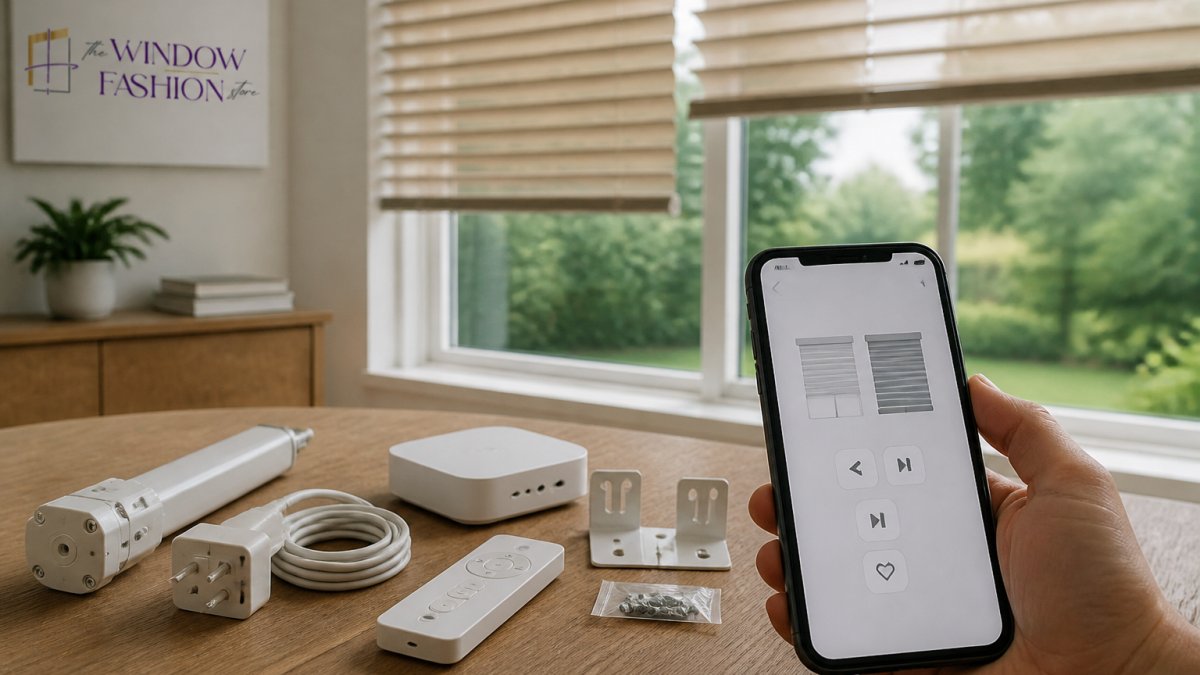
Pairing Your Blinds to the Hub or Bridge
Step 1: Power on your blinds and hub.
Make sure your blinds have fresh batteries or are plugged in. Turn on the hub and wait for it to boot up. Most hubs show a light indicator when they’re ready.
Step 2: Put the hub into pairing mode.
Per your hub’s instructions, usually press a button for 3-5 seconds until a light blinks; the hub is now listening for new devices.
Step 3: Initiate pairing on your blinds.
For RF blinds, hold the pairing button on the receiver or motor until a response light appears. For Bluetooth blinds, start pairing in the manufacturer’s app, which searches for nearby devices.
Step 4: Confirm the pairing.
Once the hub detects your blinds, the app confirms it. Name them descriptively, “Master Bedroom,” “Living Room Left”, to make automations easier later.
Step 5: Test the connection.
Open and close the blinds from the app; they should respond within 2-3 seconds. If not, check hub power and blind range.
Configuring App Control and Voice Commands
After pairing, download the manufacturer’s app if you haven’t already, it’s where you control blinds, set automations, and adjust settings.
Set up app control:
- Log in with your account
- Add your hub to the app
- Confirm your blinds appear in the device list
- Test opening and closing each blind from the app
Enable voice assistant integration:
In your voice assistant’s app (Alexa, Google Home, or Apple Home), go to device settings, search for your blind’s brand, and follow the prompts to link accounts. Your assistant will then discover your blinds automatically. Test commands like “Alexa, open the living room blinds.” If they don’t respond, check that your assistant has permission to control them in the app settings. Consistent control over your window treatments creates a cohesive environment that pairs perfectly with the convenience of automating home lighting.
Creating Automated Blinds Schedules and Routines
Automation is where smart blinds save the most time and energy. Instead of remembering to open blinds each morning, your system does it for you.
Time-Based Automation and Daily Schedules
Time-based schedules open or close blinds at specific times, say, open at 7 AM on weekdays and 9 AM on weekends, or close at sunset for privacy.
To create a time-based schedule:
- Open your blinds app and find the automation or schedule section
- Select “Create Schedule” or “Add Automation”
- Choose the blind or room
- Set the time and action (open, close, or position to a percentage)
- Choose which days the schedule applies
- Save and enable the schedule
Most apps let you create multiple schedules for the same blinds. You might have one schedule for morning, one for midday, and one for evening.
Routines link multiple devices and actions, a morning routine could open blinds, turn on lights, and start the coffee maker. They trigger at a set time or when you perform an action like disarming your security system.
Smart Blinds Scenes and Triggers for Unified Control
Scenes are preset configurations that control multiple blinds at once. Instead of opening each blind individually, one command activates your entire scene.
Create scenes for common situations:
- Movie mode: Close all blinds to block light
- Entertaining: Open blinds in living areas, close in bedrooms
- Leaving home: Close all blinds for security and energy efficiency
- Bedtime: Close all blinds and dim lights
Triggers automate scenes based on conditions: a motion sensor opens blinds when you enter a room, a light sensor closes them when the sun gets too bright, and a temperature sensor closes them on hot days to reduce cooling costs.
Common triggers include:
- Time of day
- Sunrise or sunset
- Motion detection
- Light level
- Temperature
- Security system status
- Other smart devices activating
Test triggers in different conditions, a light sensor might close blinds too early on cloudy days or miss the moment on very bright ones. Adjust sensitivity until the behavior matches what you want.
Troubleshooting Common Integration Issues
Smart blinds usually work reliably, but connection problems happen, most have simple fixes.
Blinds don’t respond to commands:
Check power first, replace batteries or verify the wired connection. If power is fine, restart the hub by unplugging it for 30 seconds. Still unresponsive?
App shows blinds offline:
The hub likely lost its Wi-Fi connection. Check your router, restart the hub, and if blinds are far from the router, move the hub or add an extender.
Voice commands don’t work:
Confirm your voice assistant app is linked to your blinds brand and that the blind’s skill or action is enabled in settings.
Automations don’t trigger:
Make sure the automation is enabled and check its time and day settings, one set for 7 AM on weekdays won’t run on Saturday.
Inconsistent response times:
An unstable Wi-Fi signal is the likely cause. Move the hub or router, add an extender, and reduce interference from other 2.4 GHz devices.
Privacy, Security, and Local Control Considerations
Connecting blinds to the internet adds a device to your network, bringing benefits and risks worth understanding.
Privacy concerns:
Some manufacturers collect data on when you open and close blinds, which could reveal when you’re home or away.
Local control:
The best smart blinds work locally, so the hub controls them even if your internet is down, no getting stuck with closed blinds during an outage.
Network security:
Use a strong password, enable two-factor authentication if available, and keep your hub’s firmware updated, manufacturers release security patches regularly, so check the app monthly.
Guest access:
Some apps let you give guests temporary access, useful for housesitters. Set a time limit so it expires automatically.
Federal Trade Commission guidance on smart home security provides recommendations for protecting connected devices. Consumer Reports’ smart home privacy recommendations offers practical steps to secure your devices.
Integrating smart blinds with home automation transforms how you interact with your windows. At The Window Fashion Store, we specialize in custom window treatments and can help you select blinds that work with your smart home system.
Frequently Asked Questions
How do you connect smart blinds to a home automation system?
Connect smart blinds by first installing the hub or bridge device and powering it on. Download the manufacturer’s app, create an account, and add your blinds by scanning a code or selecting them from a list. Once paired, link the app to your smart home platform (Alexa, Google Home, or Apple HomeKit) through the integration settings. Finally, test the connection by controlling the blinds through your chosen platform’s app or voice commands.
Do smart blinds need a hub to work with home automation?
Most smart blinds require a hub or bridge to integrate with home automation systems, though some Wi-Fi-enabled models connect directly to your network. The hub acts as a central controller that communicates between your blinds and your smart home platform. Check your specific blinds’ requirements before purchase, as hub needs vary by manufacturer and connectivity type. A hub also extends signal range and improves reliability across multiple rooms.
Can smart blinds respond to sunlight or temperature automatically?
Yes, smart blinds can respond to environmental triggers when paired with light sensors and motion sensors in your home automation system. You can program routines that close blinds when sunlight reaches a certain brightness level to reduce glare and heat, or open them at sunrise for natural light. Some systems also integrate with weather data to adjust blinds based on outdoor temperature or UV index, helping manage energy efficiency and comfort automatically.
How do you create a smart home scene that includes smart blinds?
Create a scene in your smart home app by selecting a scenario name (like “Movie Time” or “Good Morning”) and adding actions for your blinds along with other devices. For example, a “Movie Time” scene might close all blinds, dim lights, and lower the TV volume simultaneously with a single command. Name the scene, assign it a voice command phrase if desired, and test it to ensure all devices respond together. Most platforms let you trigger scenes with voice, app buttons, or automation schedules.